

FLOW AI
Free starter credits on sign-up, no card required

Flow AI Video Generator: One Line to a 15s Clip

Type a sentence or drop in a photo, and the FLOW AI video generator renders a clip of up to 15 seconds in 9:16, 16:9 or 21:9. Built for Reels editors, shop owners and teachers.

Compare Plans

How the FLOW AI Video Generator Turns Words into Footage

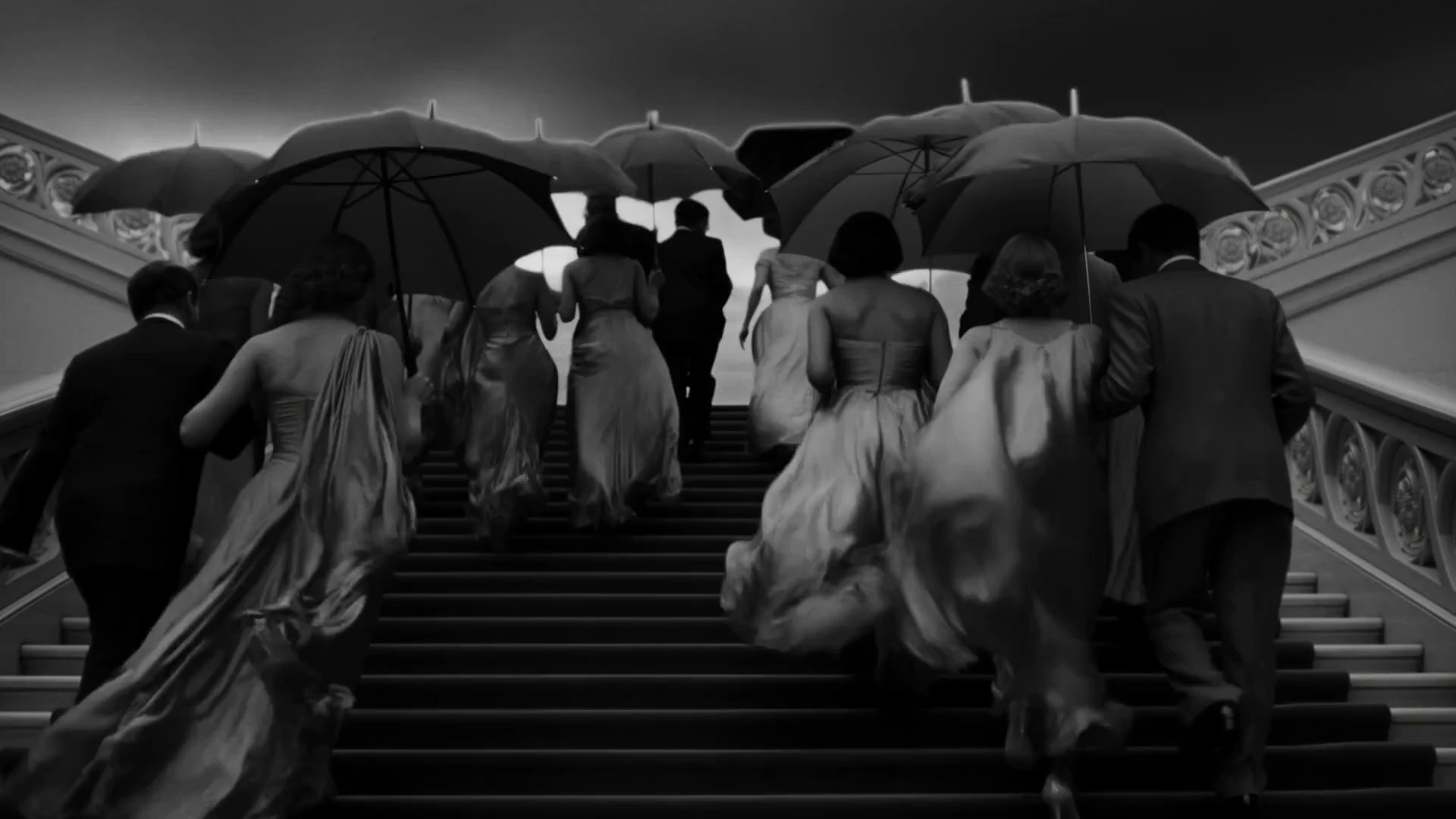
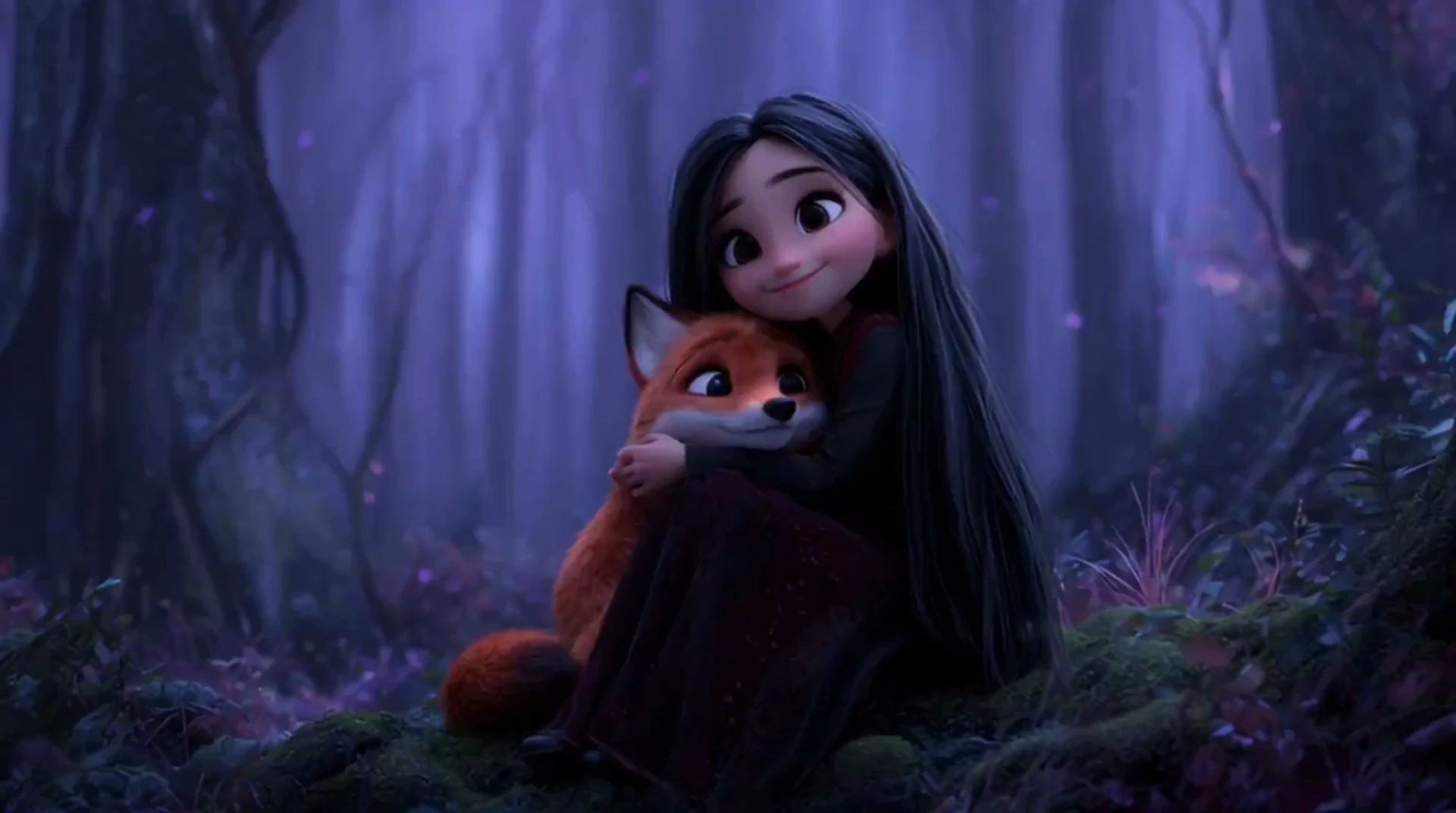
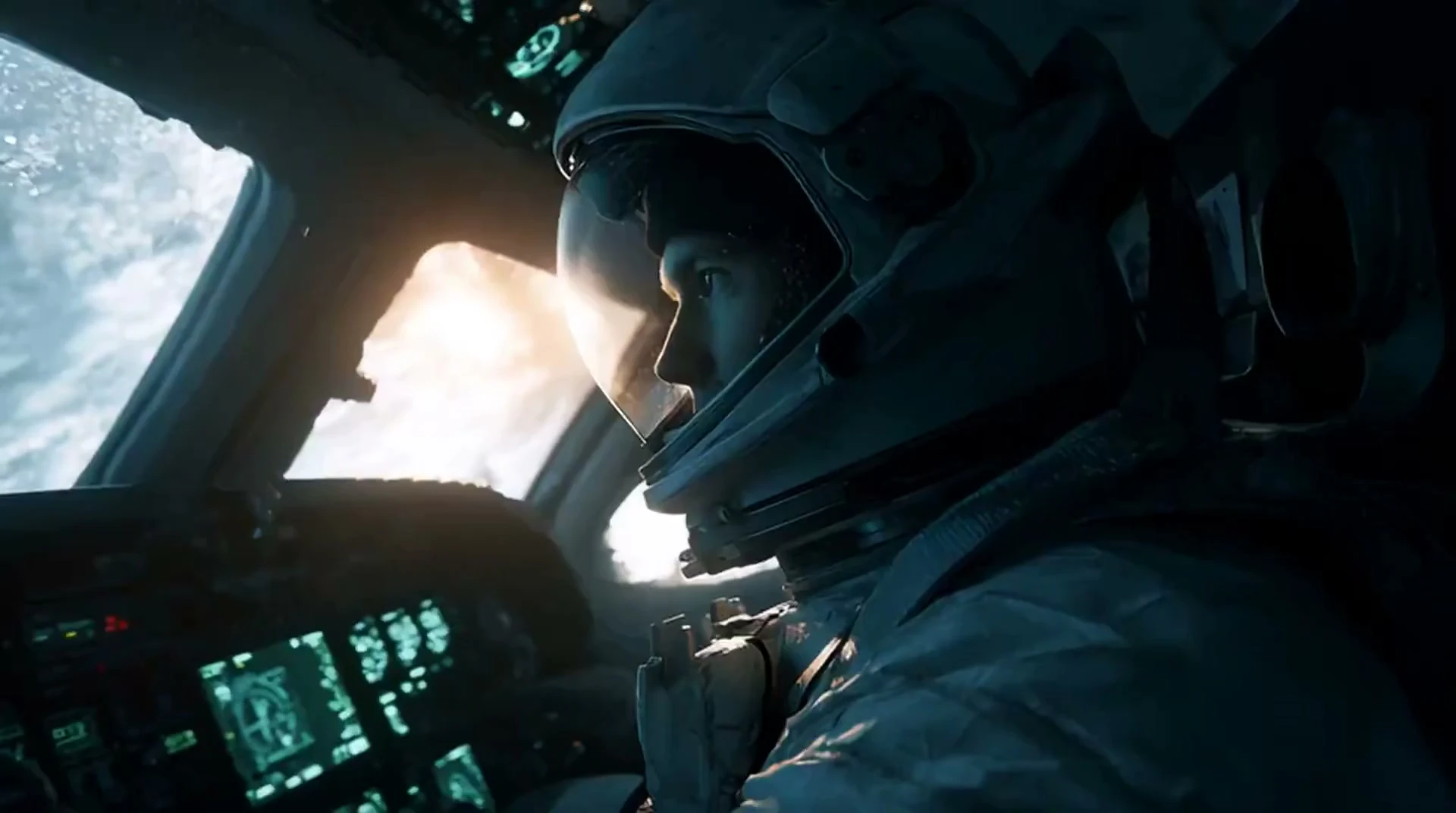
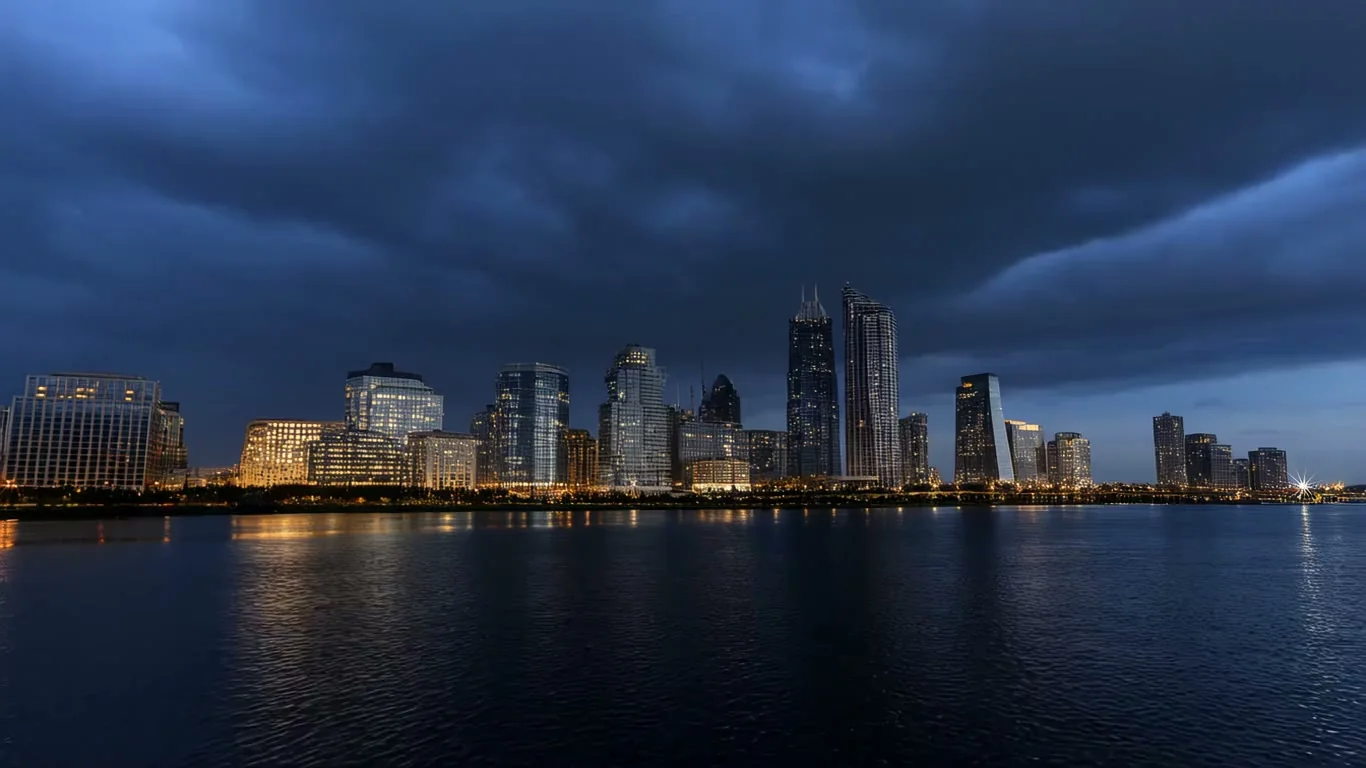
The FLOW AI video generator starts from one of two inputs: a sentence you type or a photo you upload. It sends that input to the video model you choose, with Veo Fast selected when the page opens, and returns a new clip instead of editing footage you already have. The prompt decides who is on screen, what they do and how the camera moves. The settings decide the frame: Seedance 2.0 renders 5, 10 or 15 seconds. Its 4K mode covers the 5 and 10 second lengths, and Kling 3.0 offers 16:9, 9:16 or 1:1 with a 4K tier. With a photo, the image becomes the opening frame, and Veo can also take a closing frame so the shot ends where you planned. Every model reads the same prompt a little differently, so you can run one idea twice on the flow AI video generator and keep the version that suits your post.

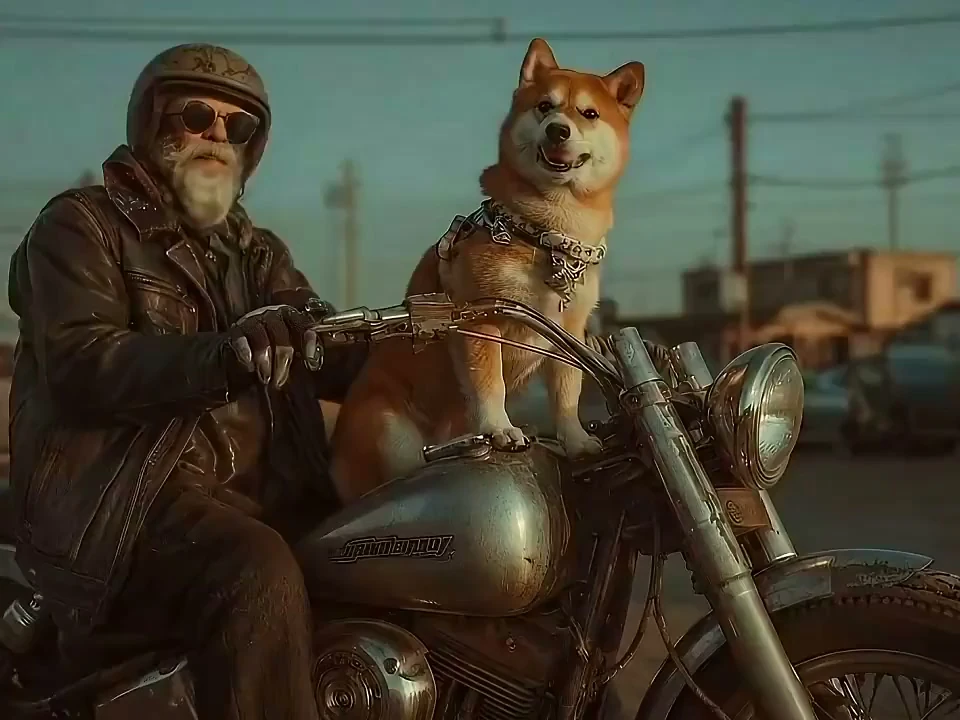
FLOW AI video generator clip of an old biker in sunglasses riding a motorcycle with a Shiba Inu

Three Clip Types the FLOW AI Video Generator Makes

Pick the format you plan to post, and the FLOW AI video generator narrows the models and settings to match it.

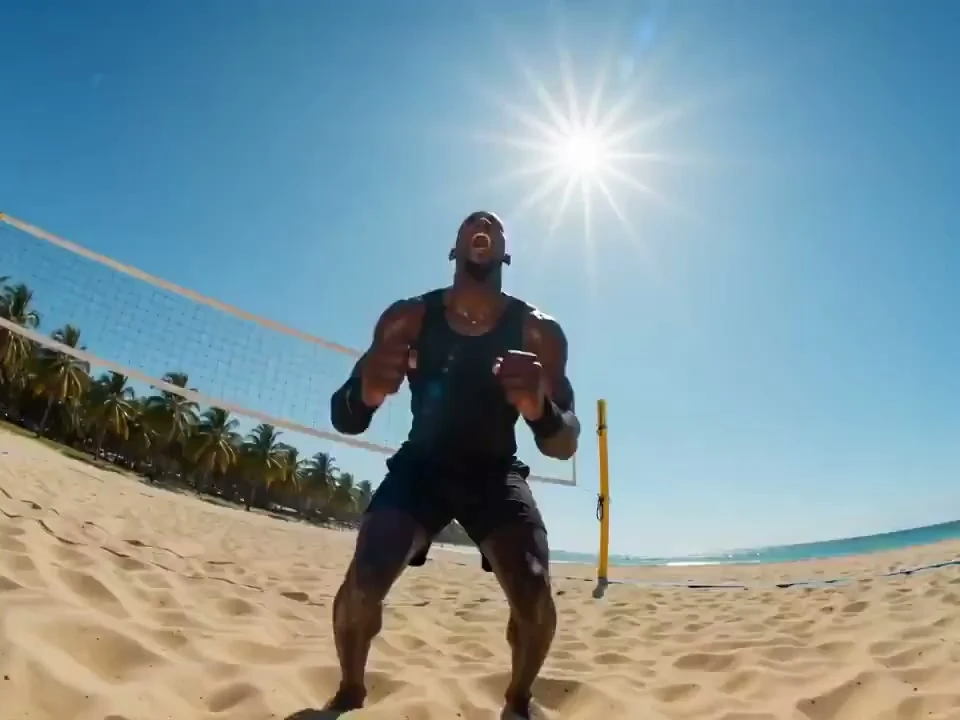
FLOW AI video generator hook clip of a volleyball player jumping for a spike on the beach

Make 9:16 Clips for Reels and Shorts

Set the frame to 9:16 and describe one moment with a clear subject. Seedance, Kling and Veo all render vertical video on the FLOW AI video generator, so a hook for Reels, TikTok or Shorts comes out ready to post.

Highlights

  • 9:16 Framing

    A full-height frame sized for phone feeds before you render.

  • Hooks Under 15s

    Pick 5, 10 or 15 seconds on Seedance 2.0 to fit a short hook.

  • Rerun a Take

    Send the same prompt to a second model and keep the stronger cut.

What You Control in the FLOW AI Video Generator

Six settings shape every clip before you press Generate.

01Length

5, 10 or 15 Seconds

Seedance 2.0 and Kling 3.0 render in three fixed lengths, so a quick hook and a full scene both fit.

02Resolution

Draft Low, Deliver in 4K

Test an idea at 480p on Seedance 2.0, then render the keeper again at 1080p or 4K for delivery.

03Frame

Seven Aspect Options

Seedance 2.0 covers 1:1, 4:3, 3:4, 16:9, 9:16, 21:9 and an adaptive option for mixed placements.

04Input

Prompt or Photo

Start from text on any model, or from an image on models that accept one, such as Veo, Hailuo 2.3 and Grok Video 1.5 Preview.

05Prompt

Room for Long Prompts

Prompt limits run from 1,000 to 20,000 characters depending on the model, enough for a detailed shot description.

06Model

Veo Fast Loads First

The generator opens on Veo Fast, and you can switch to Seedance, Kling, Wan, Grok, Hailuo or HappyHorse from the same panel.

Three Steps on the FLOW AI Video Generator

Input first, settings second, then render.

  1. 01
    Step

    Step 1: Type a Line or Upload a Photo

    Write what happens in one or two sentences, or drop in a photo to use as the opening frame of the clip.

  2. 02
    Step

    Step 2: Set Length, Frame and Quality

    Pick a model, then choose seconds, aspect ratio and resolution. Options change per model, so only valid combinations appear.

  3. 03
    Step

    Step 3: Generate and Download

    Press Generate, watch the preview and download the file. Not quite right? Change one detail in the prompt and run it again.